
How to Uninstall Apps on Mac (And Remove Leftovers for Real)
I've deleted maybe three hundred apps off Macs over the years. The first two hundred were done wrong.
We've all done it the lazy way: drag the app to the Trash, empty it, feel productive. But that only removes the .app bundle itself. Everything else stays exactly where it was — caches in ~/Library/Caches, a preferences plist in ~/Library/Preferences, a folder in Application Support that keeps growing like nobody's watching.
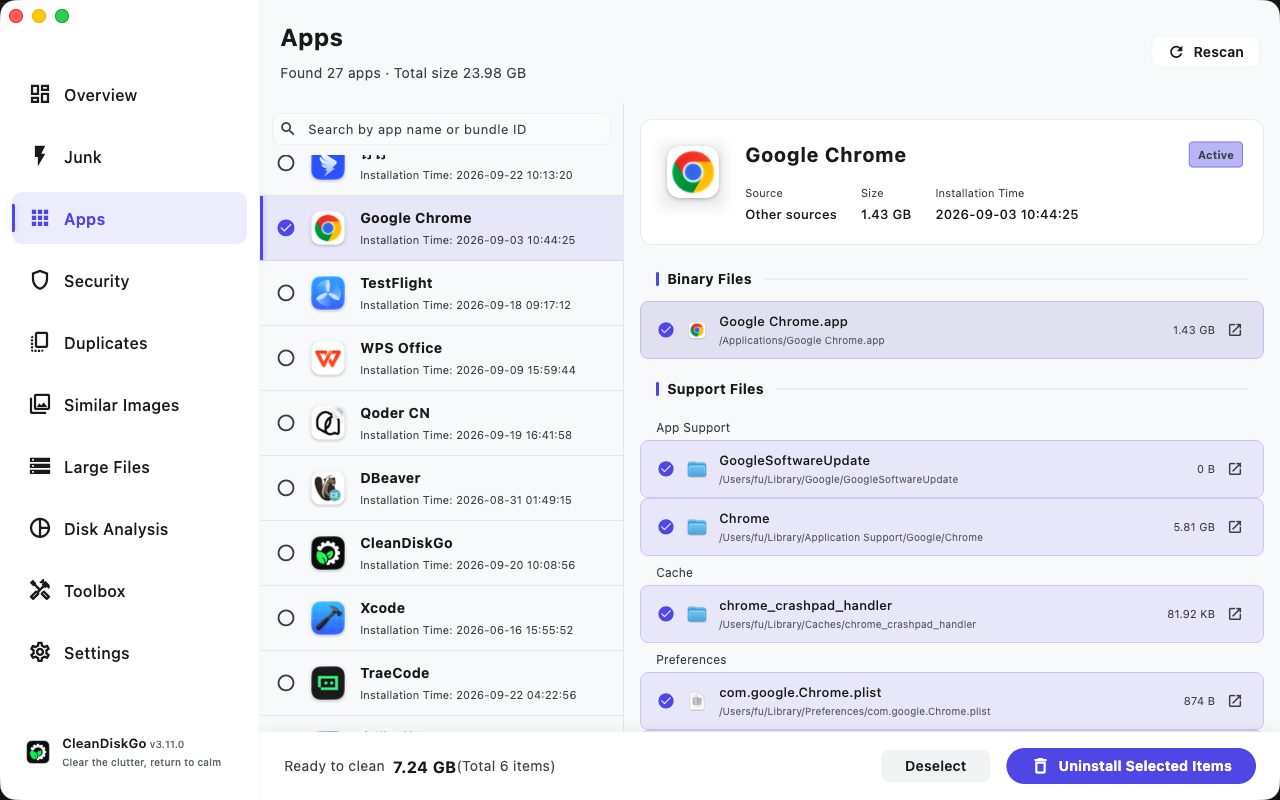
Chrome is the perfect example. The app bundle is about 1.4 GB. The support files it leaves behind? In my case, 5.8 GB. You drag one thing to the Trash and casually leave four times its size on disk.
The quick way: let an uninstaller see the whole picture
If you want the app and its baggage gone in one pass, you need something that actually looks up what the app installed. This is what the Apps screen in CleanDiskGo does.
Select an app and the right-hand panel shows every piece of it: the binary, the support folders, the cache, the preference files — each one with its real path and size, so nothing gets deleted sight unseen.
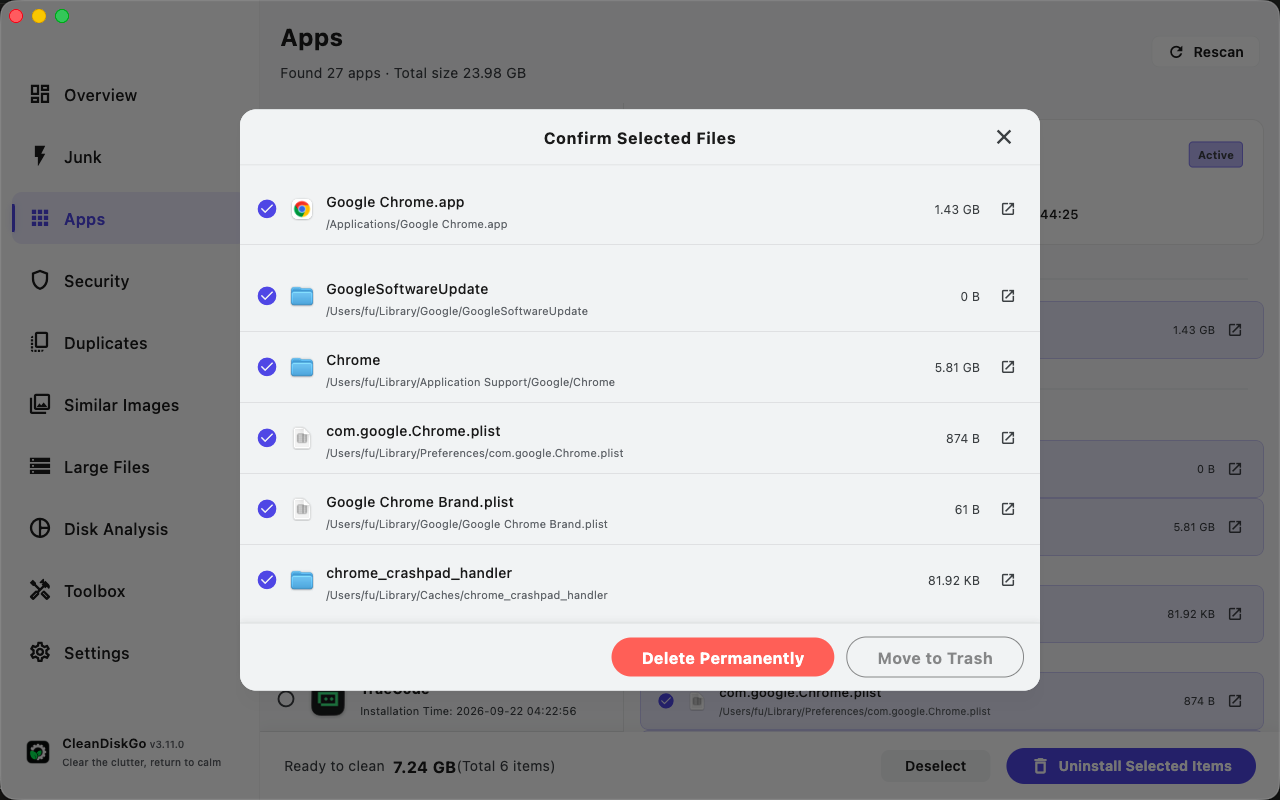
Hit Uninstall Selected Items and you get one last confirmation listing exactly what's about to go. Two buttons there matter:
- Move to Trash — you can change your mind later. I pick this for anything I might reinstall.
- Delete Permanently — straight to the void. Fine for apps you're done with forever.
The point isn't that it's fast (though it is). The point is you never have to guess what a "clean uninstall" includes.
The manual ways, and where they fall short
You can absolutely do this without any tools. You just need to know how much digging it involves.
Finder. Open /Applications, drag the app to the Trash, empty it. Done? No. You've removed the app. Now hunt for:
~/Library/Application Support/<AppName or vendor>/~/Library/Preferences/— anything with a.plistmatching the app's bundle ID (com.google.Chrome.plist, for instance)~/Library/Caches/~/Library/LaunchAgents//Library/Application Support/and/Library/LaunchDaemons/at the system level
To get to any of these, open Finder, hold Option, and use Go → Library. A few rules so you don't take out something you need: if you can't match a folder or plist to the app you're uninstalling, leave it alone. And if you delete a LaunchAgent or LaunchDaemon, reboot afterwards — otherwise the process it starts may keep running until then.
Launchpad. For Mac App Store apps, open Launchpad, hold Option until the icons jiggle, click the X. If there's no X, the app didn't come from the App Store (or macOS is protecting it), so back to Finder you go.
A vendor uninstaller. Big suites — Adobe, Microsoft, antivirus apps — often ship their own removal tool. Check the developer's site before going manual on something like that; these are the apps that install the deepest.
Manual cleanup works. It's just slow, and one missed LaunchAgent can keep regenerating files for an app you "deleted" months ago.
When macOS won't let you delete something
Sometimes you get a warning that a file can't be deleted, or the Trash refuses to empty. That's usually macOS security — sandboxed apps and system-managed files get protection you can't override by dragging harder. Don't start pasting sudo rm commands from a forum. Move the flagged item to the Trash through Finder as directed, and if the Trash itself is stuck, there's a safer walkthrough in How to Force Empty Trash on Mac.
So is dragging to the Trash really that bad?
If you uninstall one app a year, honestly, no. Drag it, empty the Trash, move on — the leftovers are a few megabytes you'll never notice.
The problem is most of us aren't that person. We try an app, it doesn't stick, it goes to the Trash, and five more take its place. A year later "System Data" is eating 80 GB and nobody knows why. That's what the leftovers add up to. If that sounds like your Mac, uninstall things properly, and while you're in there, read How to Clear System Data on Mac — a lot of what that article covers is exactly this junk.
Beginnen Sie mit der Mac-Reinigung
Laden Sie CleanDiskGo kostenlos herunter und geben Sie Ihrem Mac einen Neustart