
How to Reduce System Data on Mac Safely
CleanDiskGo Team · Updated 2026-11-15
First check whether you actually need more space
In macOS Ventura 13 or later, open System Settings → General → Storage. On older releases, use About This Mac → Storage. Check available space and allow category totals time to update.
System Data is a catch-all category for files that do not fit other categories. It is not one folder you can empty. A large number alone does not identify which files are unnecessary.
Work through identifiable storage sources
- Review Downloads for installers and exports you no longer need.
- Use Finder to inspect large personal files. Move important files to a verified external backup instead of deleting them.
- If you back up an iPhone to this Mac, review backups through Finder's device backup controls. Keep the recovery copy you may need.
- If a specific app uses excessive cache space, use that app's own controls or inspect the matching cache category.
- Leave macOS-managed files alone when you cannot identify their purpose.
Review caches in CleanDiskGo
Open Junk, scan, then inspect a category's file paths and selected size. Deselect unfamiliar items. The screenshot below is an actual interface example: a scan estimate is not space already recovered.
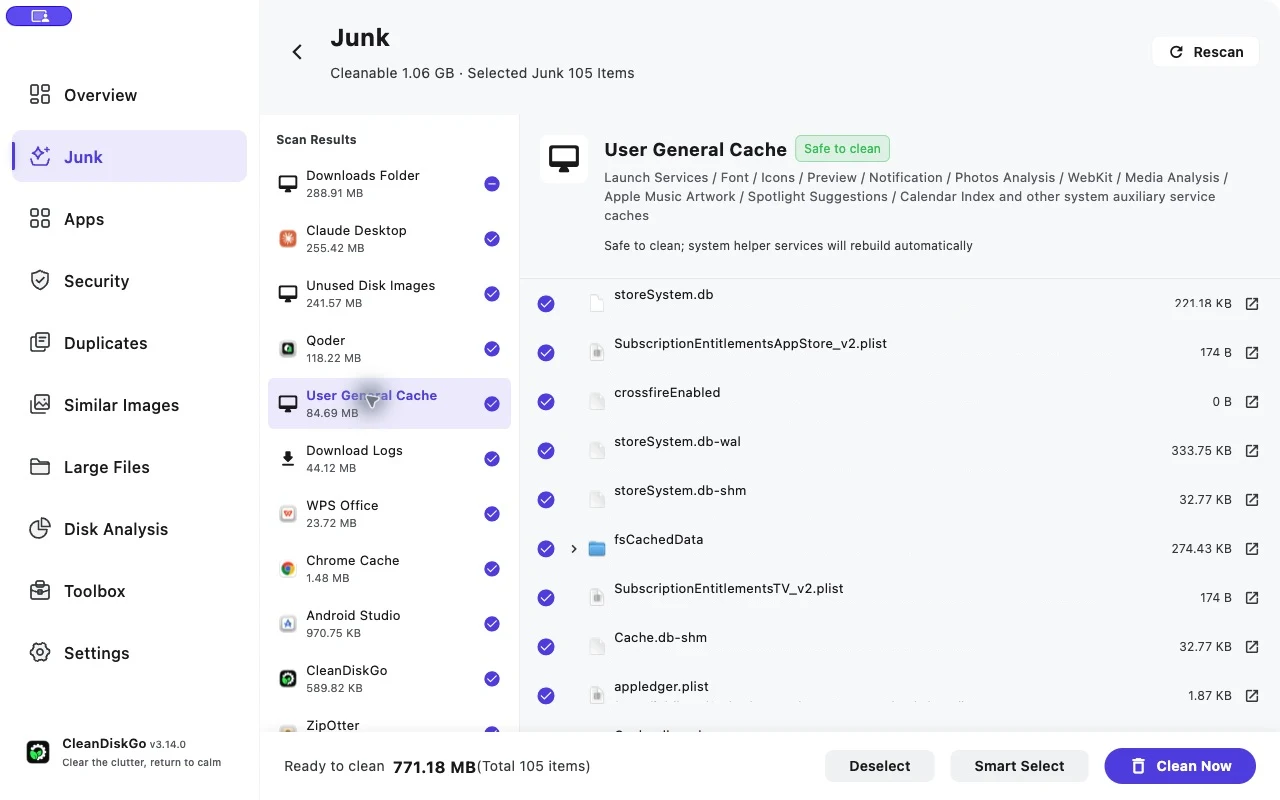
Quit the affected app before cleaning. Caches can rebuild, so clearing them repeatedly is not a permanent fix for an app that continually grows.
If the number stays high
Check available space again after macOS recalculates. Time Machine snapshots, open files and managed data can affect the picture. Do not delete /System, entire Library folders or backup folders based solely on their age. If space keeps disappearing, identify the process creating files rather than repeatedly cleaning.
Common questions
Can I delete all System Data?
No. It includes data needed by macOS and applications. Remove identifiable, unnecessary items instead.
Will this make my Mac faster?
Recovering space can help a nearly full disk, but it does not fix every performance issue. CPU load, memory pressure and application problems require separate checks.
References
Start Cleaning Your Mac
Download CleanDiskGo for free and give your Mac a fresh start