
How to Stop Apps Opening at Login on Mac
CleanDiskGo Team · Updated 2026-11-15
Use the system login-item controls
- Open System Settings → General.
- Open Login Items, or Login Items & Extensions on macOS versions that use that label.
- Review the applications in Open at Login.
- Remove an app you recognize and do not need at sign-in.
- Restart and check the effect before making more changes.
Background activity is a separate setting. A helper can support updates, cloud sync, backups or hardware. Do not disable unfamiliar items simply because they run in the background.
Check the app's own settings
Some apps have their own launch-at-login option. Also check whether macOS is reopening windows from the previous session. These are different from automatically starting every installed app.
Remove apps you no longer use
CleanDiskGo's Apps view can help inspect an app and related files. Use the vendor's uninstaller for software with special removal instructions.
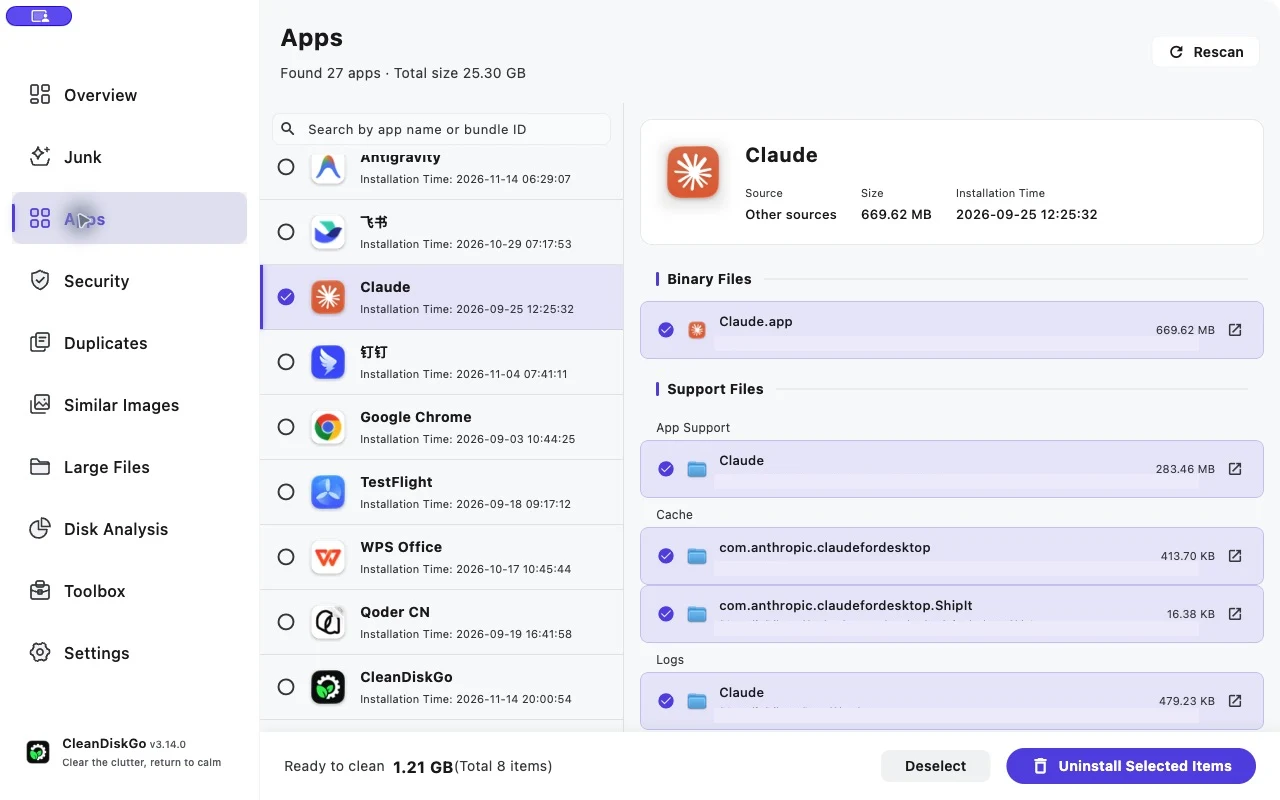
The screenshot demonstrates app review, not direct control of macOS Login Items. Storage cleanup alone does not guarantee a faster boot.
If an item returns
Check the app's documented settings, update it or contact its vendor. Do not manually delete launch service files or disable system protection to force a change.
References
Start Cleaning Your Mac
Download CleanDiskGo for free and give your Mac a fresh start