
Mac Cache Cleaner: Review App Caches Before Cleaning
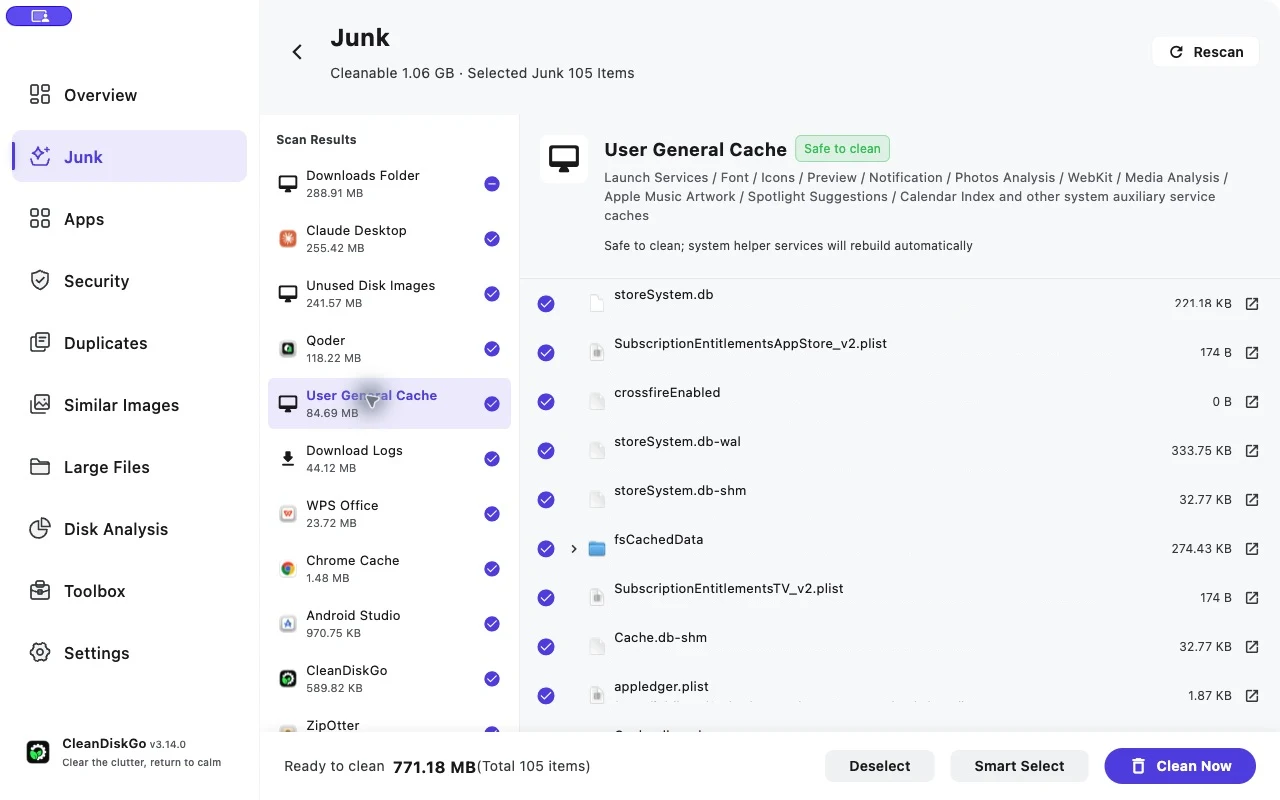
Caches store reusable data and can make apps load faster. Clearing them is useful when a cache grows too large or an app has a cache-related problem; it is not a universal speed upgrade.
Review first, clean second
- Open Junk and start a scan.
- Select a cache category. Check its explanation, file paths and selected size.
- Quit the affected app and deselect anything you do not recognize.
- Confirm only the items you intend to remove. Reopen the app and check its behavior.
What to expect
Caches may return as you use your apps, and the first launch can be slower while data rebuilds. A scan total is not a guarantee of recovered space. Access permissions, open files and your selections affect the result.
Do not delete entire Library folders or treat app support data as disposable cache. For a manual alternative, use the affected app's own cache controls where available.
Related tasks
Read the cache cleanup guide or find large personal files if caches are not the main source of storage use.
Start Cleaning Your Mac
Download CleanDiskGo for free and give your Mac a fresh start
Privacy Safe
Local Processing
Free to Use