
How to Analyze Disk Usage on Mac and See What's Actually Eating Your Storage
My Mac's storage screen said I had almost nothing free. The "About This Mac" breakdown showed a few colored bars — System Data was clearly the fat one, but "clearly" here means "a gray smudge labeled 100+ GB." That's the whole inspection you get from Apple. A pie chart. No answers.
So the real question was never whether my disk was full. It was what, specifically, was in there. And you can't answer that from a colored bar. You need a map.
Why the built-in storage screen isn't enough
macOS does give you a storage view. It's just not a useful one for actually finding things. It groups by broad category (Apps, Documents, System Data, and that infamous catch-all "Other"), it rounds aggressively, and it won't let you click into a folder and see what's inside it. You end up with a number like "System Data: 148 GB" and no way to ask "okay, but where."
That gap is exactly what a disk usage analyzer is for. Instead of categories, you get your actual file system — folder by folder, sized proportionally — so the thing taking up 190 GB doesn't hide behind a 12 GB one.
The fix is a treemap, not a list
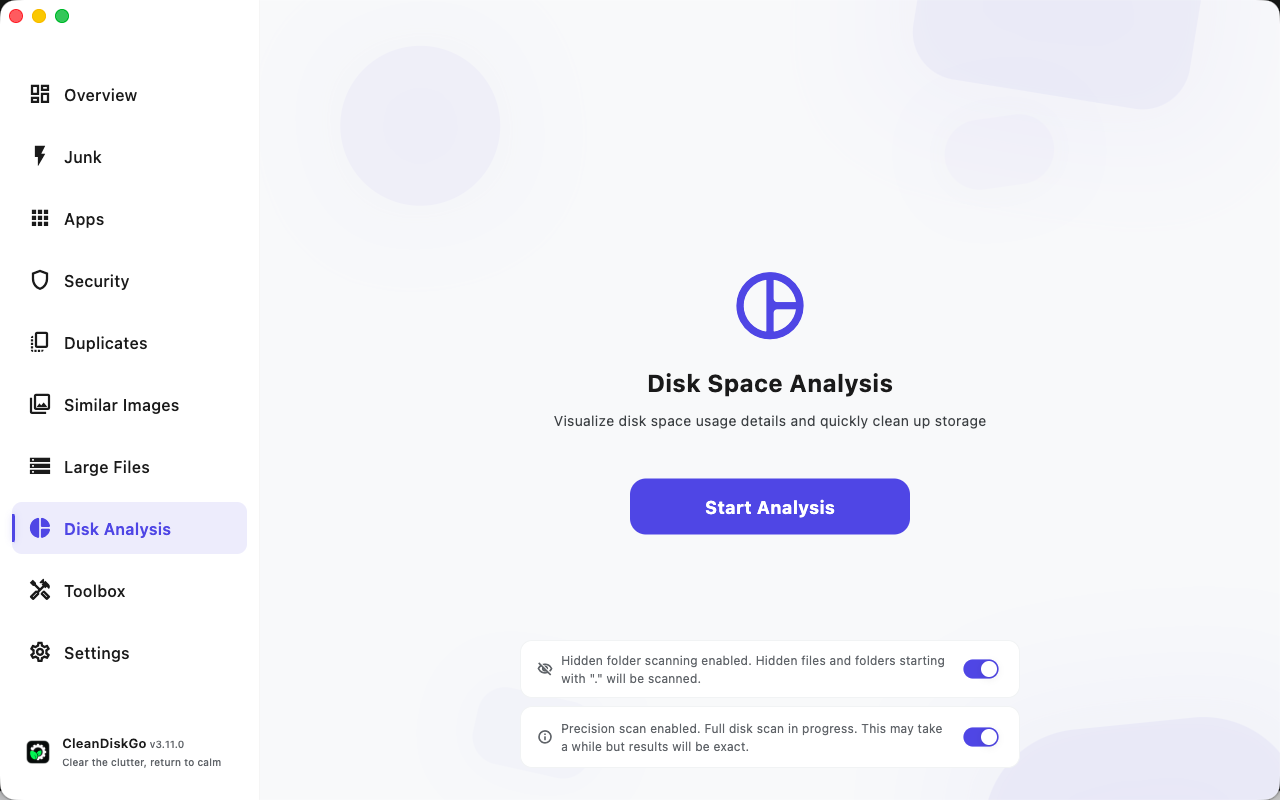
I ran the Disk Analysis screen in CleanDiskGo on my own machine. It opens with two toggles worth understanding before you hit Start:
- Hidden folder scanning — includes the dotfolders (
.cache,.npm,.rustup…) that macOS hides by default and that most people never think to check. This is where a lot of it lives, so I left it on. - Precision scan — reads real sizes instead of estimating. Slower, but when you're deciding what to delete based on the numbers, "exact" beats "close enough."
Then it draws this:
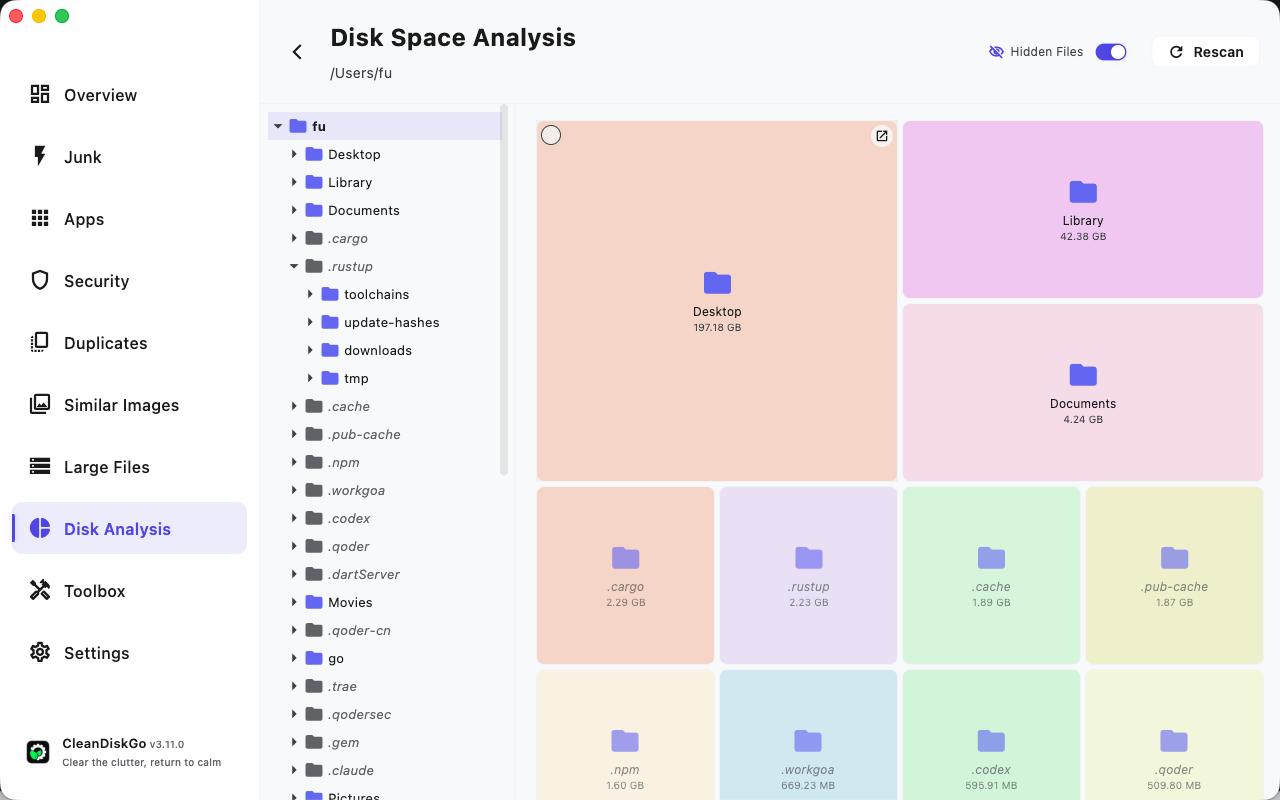
Every folder is a rectangle, and the rectangle's size is its footprint. You don't read it so much as notice it. My home folder dumped me into this view and the answer was immediately, almost embarrassingly, obvious.
What my own scan actually found
Here's the top of my /Users/fu and what each one told me:
- Desktop — 197 GB. Yes, one hundred and ninety-seven. I have a folder on my Desktop I forgot about years ago that's quietly the single biggest thing on the machine. No bar chart would ever have shamed me into finding it.
- Library — 42 GB. The expected one. This is where app support files, caches, and everything the "System Data" smudge was actually made of lives.
- Documents — 4 GB. Fine. Not the problem. Leave it.
- The dotfolder row at the bottom —
.cargo2.29 GB,.rustup2.23 GB,.cache1.89 GB,.pub-cache1.87 GB,.npm1.60 GB,.codex595 MB,.qoder509 MB. Individually unremarkable. Together, that's ~11 GB of build toolchains and package caches from projects I may not even work on anymore.
That last group is the part the storage screen is worst at. It scatters ten folders of developer cruft across "System Data" and "Other" so they never add up to something you'd notice. On a treemap they sit right there in a row, and the pattern — "why do I have five different language toolchains cached?" — becomes a question you can actually act on.
The tree on the left is how you go deeper. Click Desktop, and its contents re-render as their own treemap. You keep drilling until you're staring at the specific 60 GB file instead of a vague category. It's basically the opposite of du -sh * in Terminal — same information, but you can see it and click around instead of squinting at a wall of numbers.
So what do you do with the map
A disk analyzer doesn't delete anything for you, and that's the point — it's a diagnostic. It turns "my disk is full" into "my Desktop has a forgotten folder, three old toolchains, and a browser cache." Once you can see the shapes, the decisions get easy:
- One giant file or folder (my Desktop situation) → just go handle that one thing. It's usually most of the win.
- Developer caches (
.rustup,.npm,.pub-cache,.cargo) → these regenerate, so they're generally safe to clear if you're not mid-project. If you don't touch that language anymore, the whole folder can go. - A pile of app leftovers and caches you'd rather not judge one-by-one → that's a different tool's job; the junk cleaner handles the "I know it's junk but I don't want to decide" cases.
- Genuinely large files you want to hunt down individually → find and delete large files on Mac.
And if your storage screen's mystery number was "Other" specifically, that one has its own deep-dive: what is "Other" storage on Mac.
My honest take
You don't need a disk analyzer until the storage bar turns yellow and you have no idea why. But the first time you run one and watch a 197 GB folder you'd sworn didn't exist light up like a billboard, it's a little unsettling — in a good way. The mystery of "where did my storage go" stops being a mystery.
If you want to see your own disk drawn to scale, CleanDiskGo does the analysis in one pass. Run it once, find your Desktop-sized surprise, and get the space back.
Börja rensa din Mac
Ladda ner CleanDiskGo gratis och ge din Mac en nystart