
How to Find Large Files on Mac and Decide What to Remove
CleanDiskGo Team · Updated 2026-11-15
Start with the storage overview
Open System Settings → General → Storage on macOS Ventura or later. Review the Documents and Applications categories to understand whether personal files or apps are the main source of use.
Find large files in Finder
- Open Finder and press Command-F.
- Select This Mac or the folder you want to inspect.
- Add a search criterion and choose Other → File Size if File Size is not listed.
- Search for files larger than a threshold appropriate to your disk, such as 1 GB.
- Inspect each result's location and open unfamiliar files before making a decision.
Finder search depends on what macOS can index and access. It may not show everything on a drive.
Use CleanDiskGo's Large Files workflow
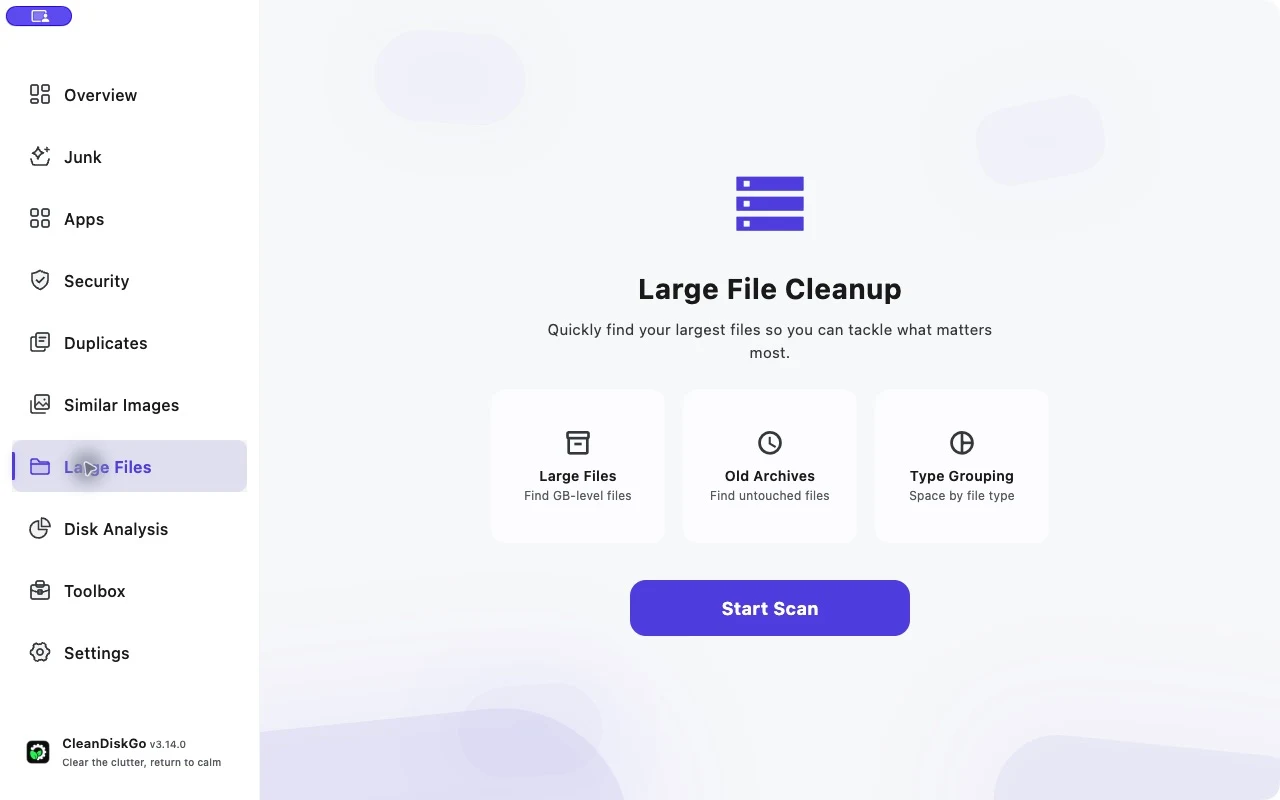
Open Large Files, start a scan and inspect the largest results. Treat size and age as review aids rather than reasons to delete automatically.
Keep, move or delete?
Keep active project files. Move archives you still need to an external drive and verify the copy before removing the original. Delete only confirmed unwanted downloads or redundant exports.
Do not delete components inside virtual machines, Photos libraries, app packages or backups. Use the owning app's management tools for those containers.
Why has available space not changed?
Files in Trash still use storage. Snapshots, open files and delayed storage calculations can also affect what you see. Review Trash carefully and compare available space after macOS updates its totals.
References
Start Cleaning Your Mac
Download CleanDiskGo for free and give your Mac a fresh start