
How to Uninstall Apps on Mac and Review Leftover Files
CleanDiskGo Team · Updated 2026-11-15
Before uninstalling
Save and export any work stored inside the application. Quit it, including its menu-bar helper when appropriate. Removing an app does not cancel subscriptions or delete a cloud account.
Method 1: Use the vendor's uninstaller
If the app provides an uninstall tool or documented removal steps, use those first. This matters for apps with system extensions, drivers and background services.
Method 2: Remove an ordinary app in Finder
- Open Finder → Applications.
- Select the application you no longer need.
- Move it to Trash and authenticate if macOS requests it.
- Review what is in Trash before emptying it; emptying removes the normal recovery route.
Some built-in or managed applications cannot be removed this way.
Review related files with CleanDiskGo
Open Apps, select an app and inspect the binary, supporting files, caches and logs shown for it. Deselect anything you want to keep before confirming removal.
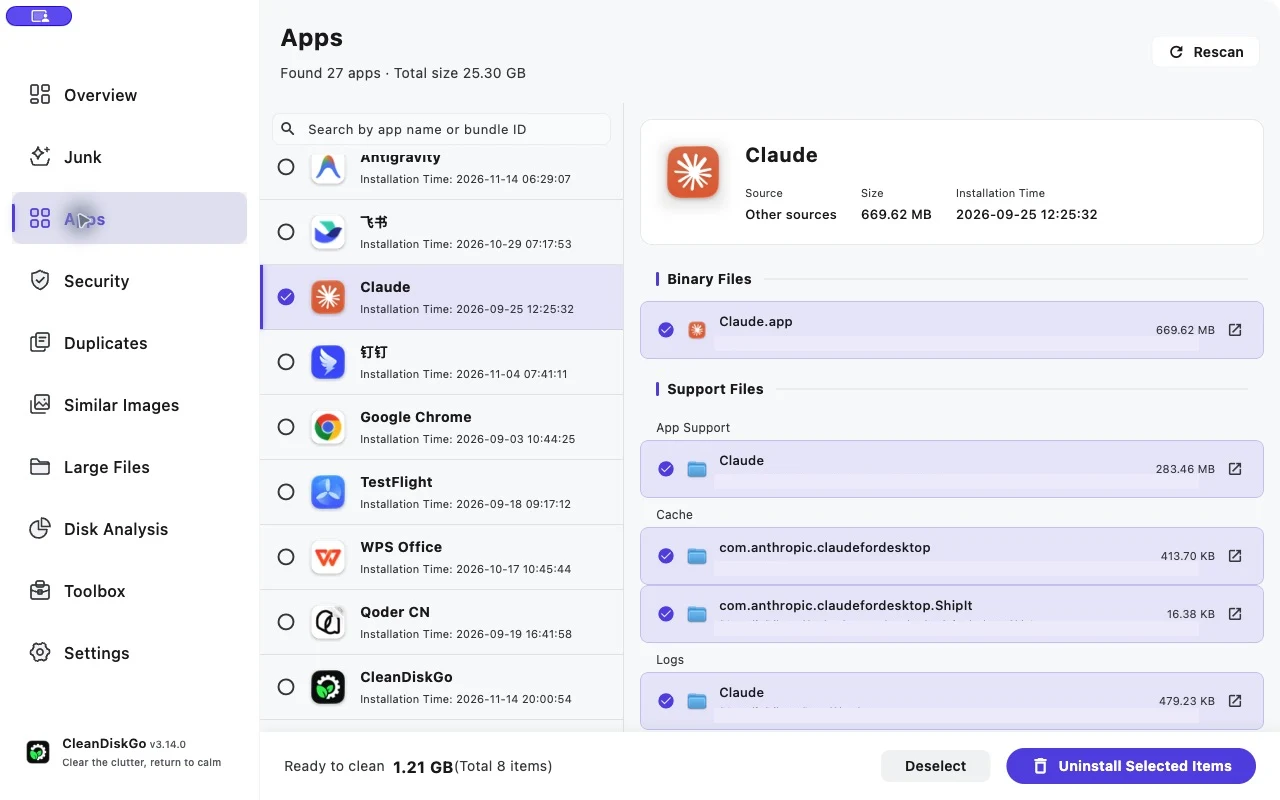
Supporting files may contain valuable settings or local databases. Shared vendor folders can belong to several apps. Do not delete every matching filename from Library or assume all leftovers are junk.
If removal fails
Restart the Mac, check the vendor's instructions and verify whether an administrator or device-management policy controls the app. Do not disable macOS security to force an uninstall.
References
Start Cleaning Your Mac
Download CleanDiskGo for free and give your Mac a fresh start