
How to Analyze Disk Usage on Mac Before Cleaning
CleanDiskGo Team · Updated 2026-11-15
Start with macOS Storage
Open System Settings → General → Storage on macOS Ventura or later. Record available space and identify the largest categories. Allow the totals to finish calculating.
Inspect folders, not just category names
Use Finder's Get Info on a known folder, or search by file size. System Data is a broad category rather than a single folder. Shared data, permissions and snapshots can complicate simple comparisons.
Use CleanDiskGo's Disk Analysis workflow
Open Disk Analysis, review the scan options and start analysis of the locations available to the app. Use the resulting view to decide which folders deserve closer inspection.
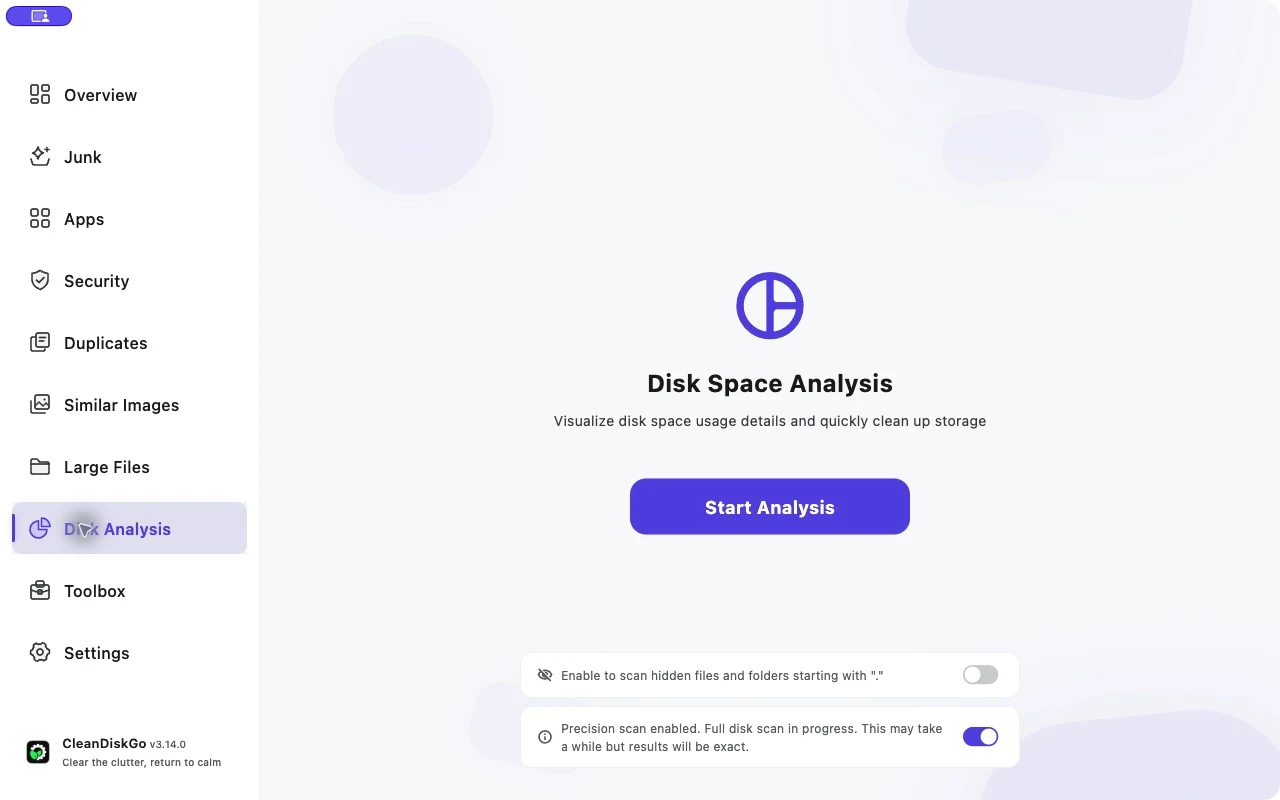
The initial screen shown above is an interface example, not an analysis result or speed benchmark. Scans can take time and may not access protected or ungranted locations.
Turn findings into decisions
Keep active data, move verified archives and remove only confirmed unnecessary files. Use the owning application's tools for managed libraries and virtual machines. See large-file review.
Start Cleaning Your Mac
Download CleanDiskGo for free and give your Mac a fresh start