
Mac Privacy and Unwanted Leftover Review | CleanDiskGo
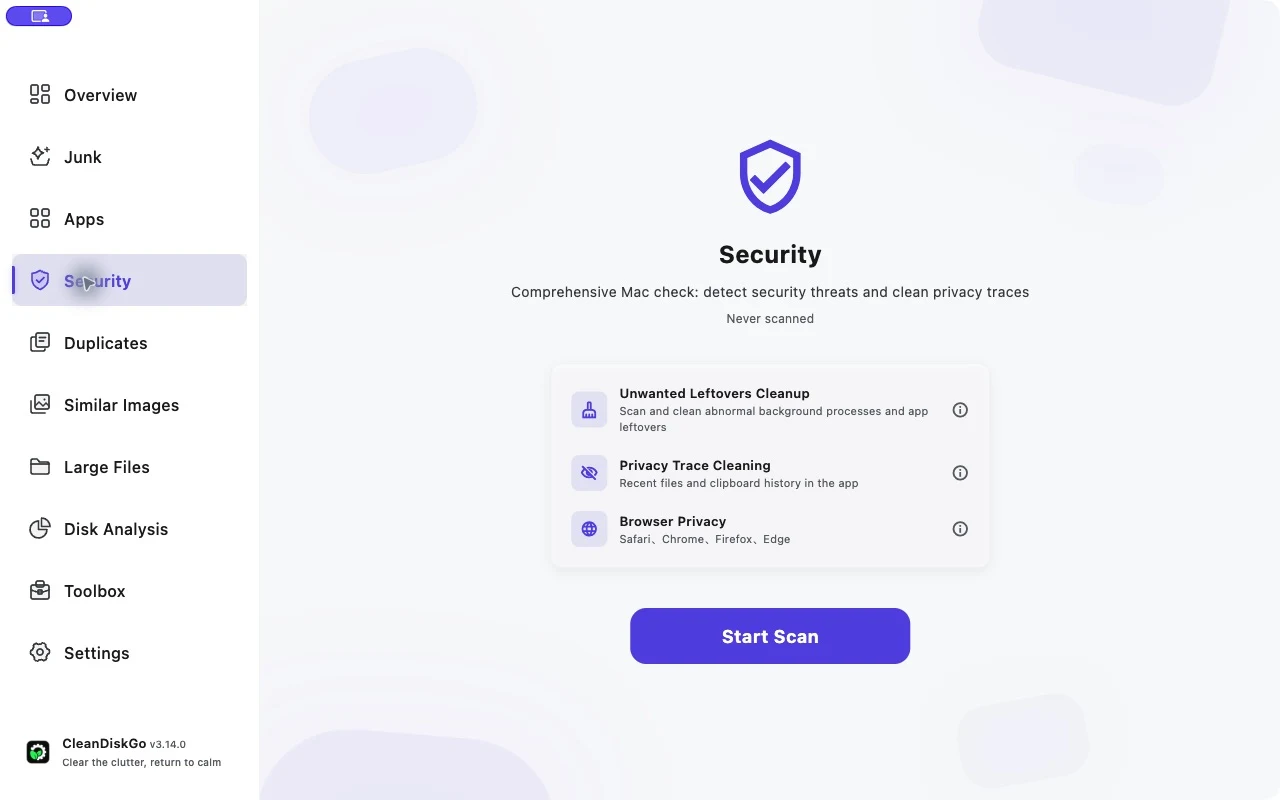
Unexpected pop-ups or browser changes deserve investigation, but they do not by themselves identify malware. CleanDiskGo's Security screen groups unwanted leftover checks, in-app privacy traces and browser privacy tasks.
Review the scope of each action
- Open Security and read the category description.
- Run a scan and inspect results before selecting changes.
- Keep browser data you need; clearing cookies can sign you out of websites.
- Use browser settings to review unfamiliar extensions and notification permissions.
Know the limits
These maintenance tools should not be presented as a guarantee of malware detection or complete eradication. Access depends on macOS permissions and the available feature. A clean result is not proof that a Mac is free of threats.
For suspected infection, update macOS, avoid entering credentials into unexpected prompts and use an appropriate specialist security tool or Apple support. Do not disable system protection to delete a protected file.
Read signs your Mac may have malware.
Start Cleaning Your Mac
Download CleanDiskGo for free and give your Mac a fresh start