
How to Clean Junk Files on Mac (A Real Purge, With Numbers)
A few days ago my Mac told me I had 14 GB of "System Data". I don't remember installing a system.
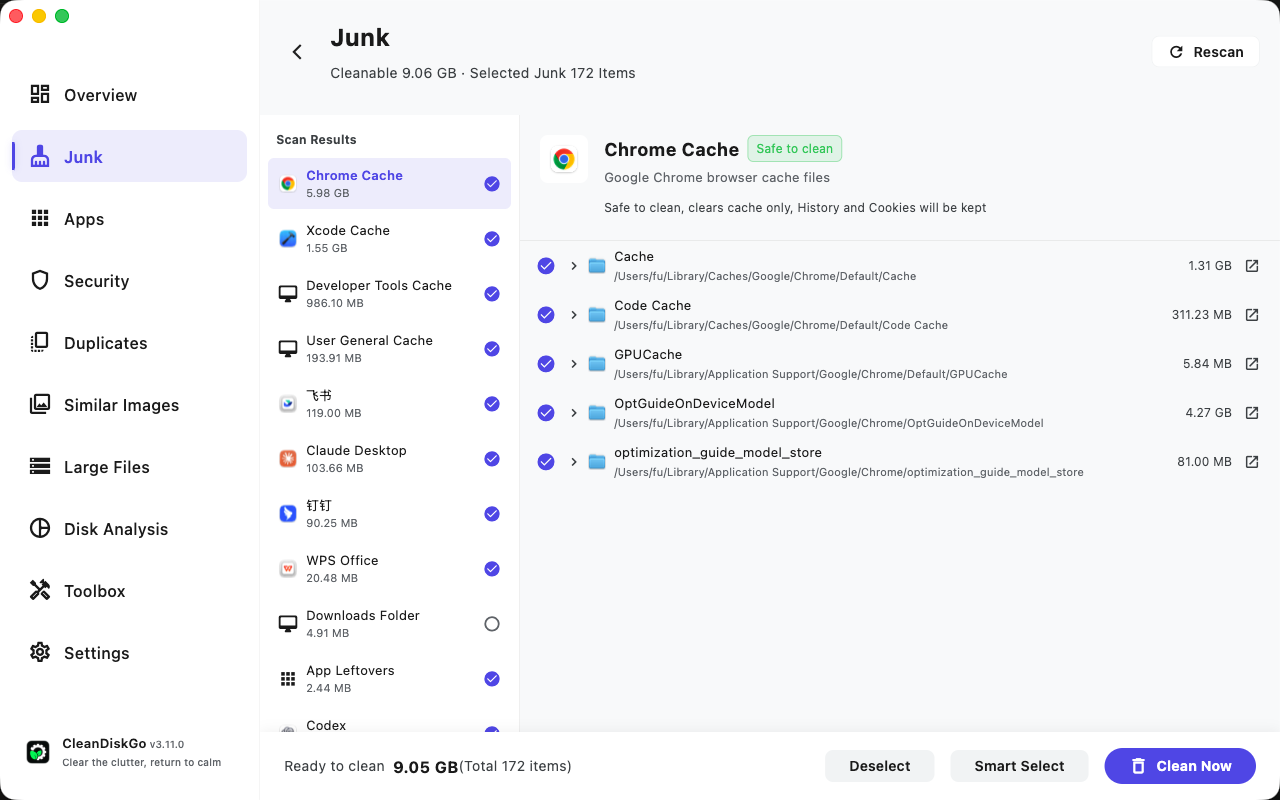
So I did the obvious thing and ran a junk scan on my own machine (I work on CleanDiskGo, so yes, I get to scan my own Mac for work). Result: 9.06 GB of cleanable junk, 172 items. Almost none of it was where people assume junk lives. It wasn't the Trash. It wasn't Downloads. It was caches — the kind apps never mention and never delete.
Here's what I found, what it means, and how to do the same purge on your Mac without deleting something you'll miss.
What "junk" actually is on a Mac
Junk is any file an app created to work faster the next time it needed the same data — and then forgot about. Concretely, it piles up in a few forms:
- Browser caches — images, scripts, and model files Chrome/Safari download to load pages faster
- App caches — thumbnails, previews, indexes, rendered leftovers
- Logs — every app that crashes "successfully" writes a report nobody reads
- Uninstall leftovers — plists and support folders from apps you deleted months ago
- Dev caches — if you've ever touched Xcode, this one alone can be gigabytes
None of these are bad. They're the price of things loading fast. The problem is they have no expiration date and no sense of proportion. A cache built to make one website snappy doesn't care that it's now 4 GB.
The Chrome situation (my biggest single find)
The largest item in my scan was Chrome Cache: 5.98 GB — more than the Chrome app itself. Inside it, the interesting part:
| What | Size | What it actually is |
| --- | --- | --- |
| OptGuideOnDeviceModel | 4.27 GB | On-device AI models Chrome downloaded for its optimization guide |
| Cache | 1.31 GB | Regular web content cache |
| Code Cache | 311 MB | Compiled JS bytecode |
| GPUCache | 5.84 MB | GPU-rendered assets |
| optimization_guide_model_store | 81 MB | More model data |
Read that first row again. Nearly 4.5 GB of AI models landed in my Application Support without a single prompt asking "hey, want these?" That's the exact kind of junk that manual cleaning guides never cover, because nobody's browsing ~/Library/Application Support/Google/Chrome/ on a Tuesday evening deciding what to delete.
Clearing it is safe — Chrome re-downloads what it actually needs. History, cookies, passwords, and open tabs don't touch the cache folders, so they survive. If you want the longer story on what's safe to delete vs. what you should leave alone, I wrote a whole piece on how to clear cache on Mac.
Doing it manually: possible, with caveats
If you like doing things by hand, junk lives in places you can absolutely reach yourself. In Finder, hold Option, click Go → Library, then dig through:
~/Library/Caches/— the big one~/Library/Logs/~/Library/Application Support/— carefully; this also holds live app data/Library/Caches/and/Library/Logs/at the system level
Two things make this tedious rather than dangerous. First, you have to judge every folder by name alone — is OptGuideOnDeviceModel junk or is Chrome about to fall apart without it? (Junk. But good luck being sure, at 8pm.) Second, it's a game of whack-a-mole: caches regenerate within days, so unless you enjoy this, you'll do it once, learn your Mac hoards 6 GB of browser, and stop.
The one hard rule: if you can't connect a folder to a specific app you trust yourself to reason about, don't delete it.
The scan-and-review way
Here's the same cleanup done in CleanDiskGo, start to finish. The Junk screen opens with three categories — System Junk (logs and cache), App Leftovers (uninstall debris), and Dev Caches (Xcode and friends) — and one Start Scan button:

The scan I mentioned earlier comes out like this — every item grouped by app, with its size and path, so you can see what you're approving instead of trusting a "Clean Now" button blindly:
A few details I pay attention to when reviewing a scan:
- Safety labels. "Safe to clean" with a plain-English explanation of what stays untouched (in my Chrome case: "clears cache only, History and Cookies will be kept"). If a tool can't tell you why something is safe, that's a red flag.
- Things that look like junk but aren't. My Downloads folder (4.91 MB) came back unchecked by default. Correct — that's where my invoices live.
- App-by-app grouping. "飞书 119 MB, 钉钉 90 MB, Claude Desktop 103 MB" — I immediately knew which of those I'd miss and which I wouldn't.
Then it's one click. My 9.06 GB purge took longer to write this sentence than to execute.
How often should you do this?
Honestly? Less often than the internet suggests. Caches are not a disease; a Mac with 2–3 GB of cache is functioning as designed. Clean when:
- Storage is actually getting tight
- An app behaves weirdly and "clear its cache" is the standard fix
- You've uninstalled a bunch of apps and want the leftovers gone
- It's been six months and the number above says 9 GB
If you're chasing free space and junk alone doesn't explain the hole in your disk, the bigger culprits are usually where I'd look next: duplicate files, old iPhone backups, and whatever System Data has been quietly becoming.
اپنا Mac صاف کرنا شروع کریں
CleanDiskGo مفت ڈاؤنلوڈ کریں اور اپنے Mac کو نئی شروعات دیں