
How to Clear Cache on Mac Without Deleting App Data
CleanDiskGo Team · Updated 2026-11-15
Choose the cache you want to clear
Browser cache, cookies, app caches and saved documents are different things. Clearing cookies may sign you out; deleting application support data may remove local work. Decide which problem you are trying to solve before deleting files.
Use built-in app controls where possible
- Save your work and close tabs or tasks that matter.
- Open the affected browser or app settings and find its storage or browsing-data controls.
- Select cached files only if that is your goal; review separate cookie, password and history options.
- Restart the app and check whether the issue is resolved.
Menu labels vary with app versions. Consult the app's own help rather than treating all browsers alike.
Inspect an app cache manually
Finder's Go → Go to Folder can open ~/Library/Caches. This is a location to inspect, not an instruction to delete everything. Identify the app-specific folder, check its size and use the vendor's guidance. Avoid system-wide cache directories and terminal deletion commands.
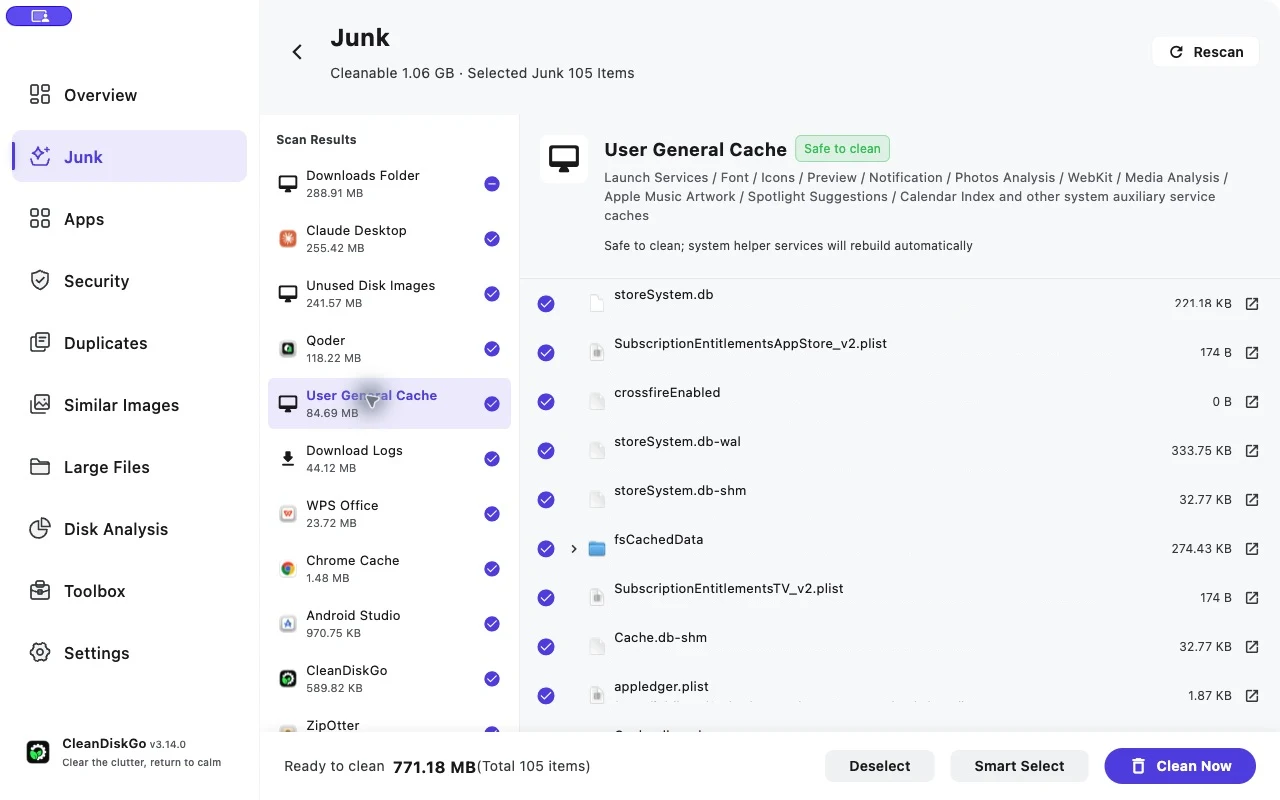
Review a scan in CleanDiskGo
Open Junk, scan and choose a cache category. Check paths and deselect files you do not recognize. Quit the affected application before confirming a cleanup.
What happens afterward?
The app may take longer to open while rebuilding cached data. Cache files can return during normal use. If the disk is still full, review large files and System Data instead of repeatedly clearing small caches.
References
Start Cleaning Your Mac
Download CleanDiskGo for free and give your Mac a fresh start