
Large File Finder for Mac: Find What Uses Your Storage
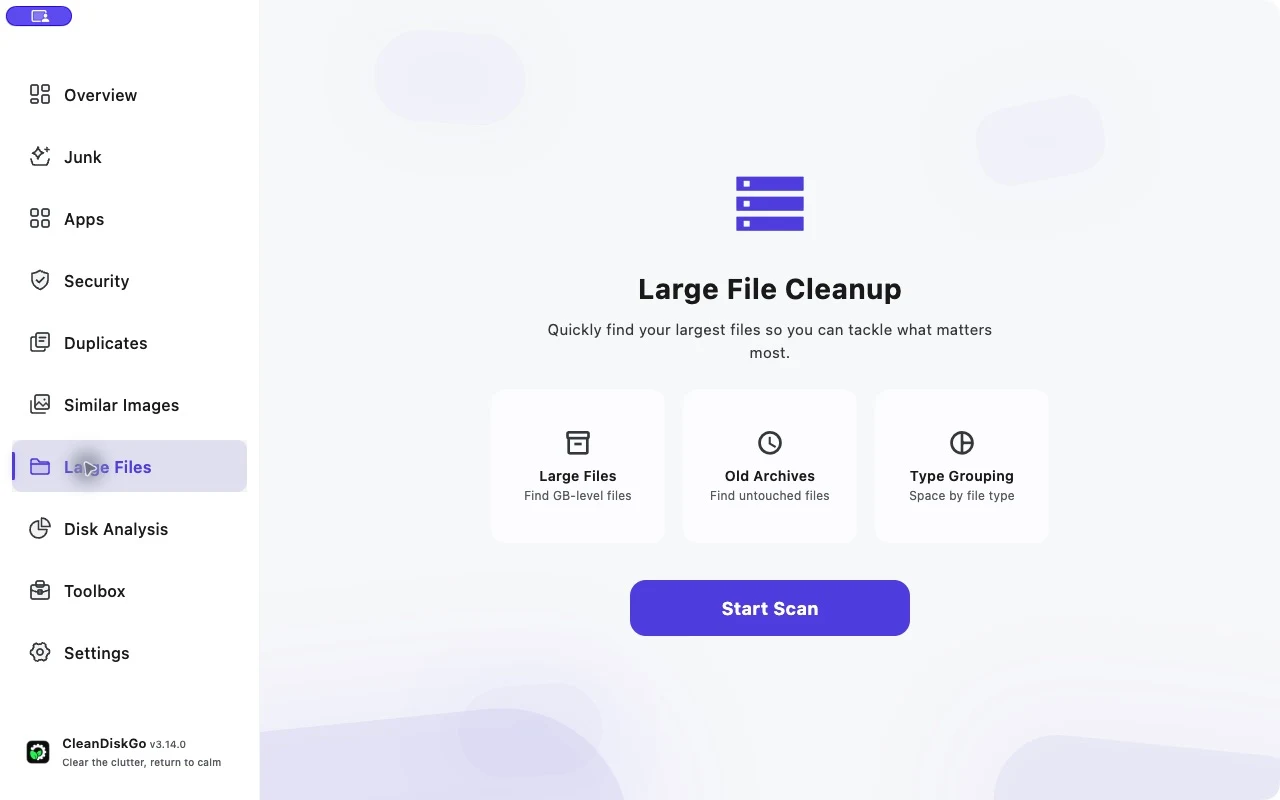
A few videos, archives or disk images can use more space than thousands of small cache files. Start with the largest files when your goal is to recover meaningful storage.
A practical review workflow
- Open Large Files and start the scan.
- Review the largest results and their locations.
- Open unfamiliar files or reveal their folder before selecting them.
- Move files you still need to an external disk; remove only confirmed unwanted copies.
Size alone does not make a file junk
Virtual machines, photo libraries and project assets can be large and essential. Avoid deleting pieces from inside managed libraries or application packages. An old modification date is not a reliable reason to delete a backup.
If storage numbers do not update immediately, allow macOS to recalculate. Check the real available space as well as category labels.
Follow the large file tutorial for the Finder alternative.
Start Cleaning Your Mac
Download CleanDiskGo for free and give your Mac a fresh start
Privacy Safe
Local Processing
Free to Use