
How to Find Duplicate Files on Mac Without Losing Originals
CleanDiskGo Team · Updated 2026-11-15
Do not rely on filenames alone
Two files with the same name can have different contents. Two identical files can also have different names. Keep location, content and project context in mind when reviewing duplicates.
Manual review in Finder
- Open a folder such as Downloads or a specific export folder.
- Sort by name or size to find likely repeated copies.
- Open candidates and check their contents and locations.
- Keep the copy in your active working folder and back up important material.
This works for small folders but is not a comprehensive content-based duplicate search.
Review groups in CleanDiskGo
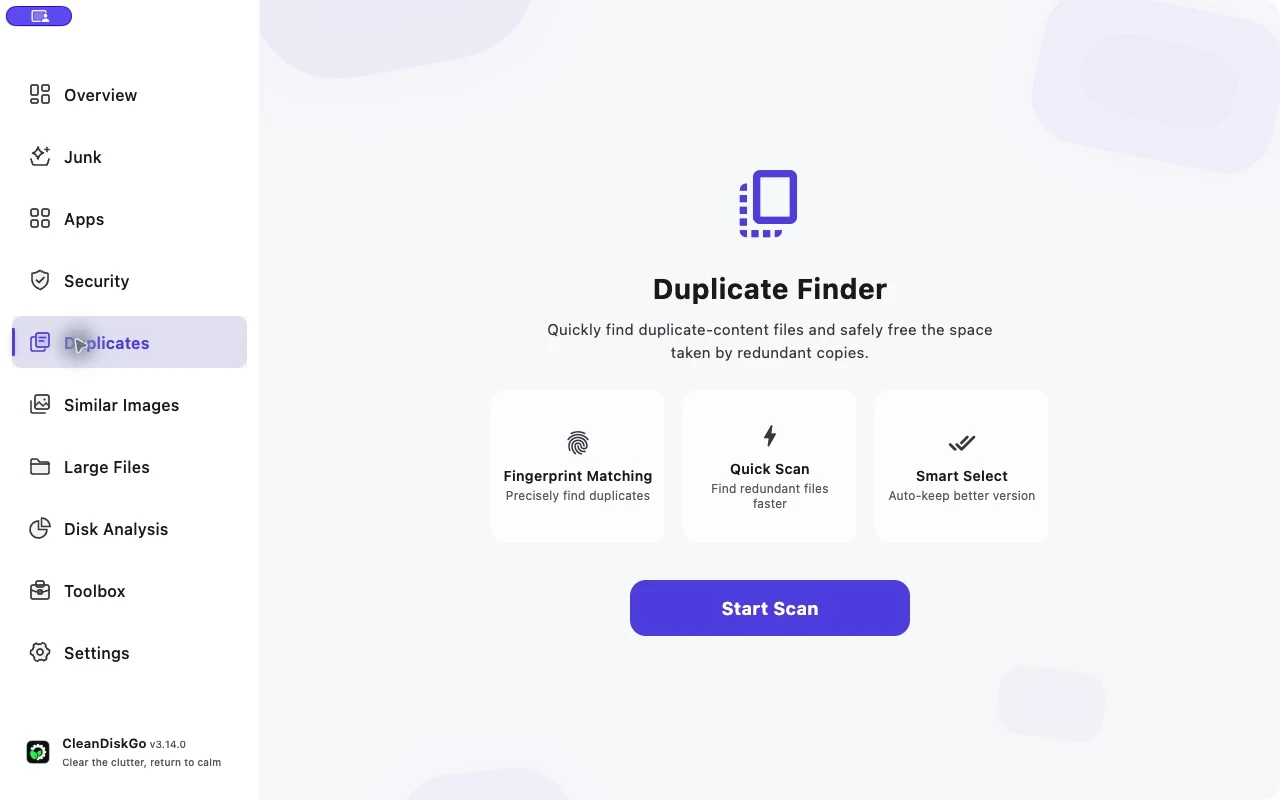
Open Duplicates, start a scan and review the duplicate groups. Check each selected path even if Smart Select suggests copies to remove.
Establish a keep rule
Prefer the copy your project actually references. A backup or synchronized copy may be intentional. Removing one file from a synchronized folder can affect other devices.
Similar photos are a separate task: a different crop or edit is not necessarily a duplicate. Use the photo application's own duplicate tools for its managed library and do not manually edit the library package.
Before confirming
Check that every group retains the copy you need. Avoid bulk removal across backups or active projects until you understand the consequences.
References
Start Cleaning Your Mac
Download CleanDiskGo for free and give your Mac a fresh start