
How to Review and Clear App Logs on Mac
CleanDiskGo Team · Updated 2026-11-15
Decide whether logs matter to your storage problem
Small logs usually do not explain tens of gigabytes of storage use. Use Finder's Get Info to check a known log file's size. If it is growing rapidly, identify which app is writing it.
Keep useful diagnostic evidence
If you are troubleshooting a crash or talking to support, save the relevant report first. Removing a report can make the problem harder to diagnose.
Review app logs
Finder's Go → Go to Folder can open ~/Library/Logs for inspection. Identify the app-specific file, consult its documentation and quit the application before removing an unnecessary log. Do not clear entire system folders.
Use a cleanup scan as a review tool
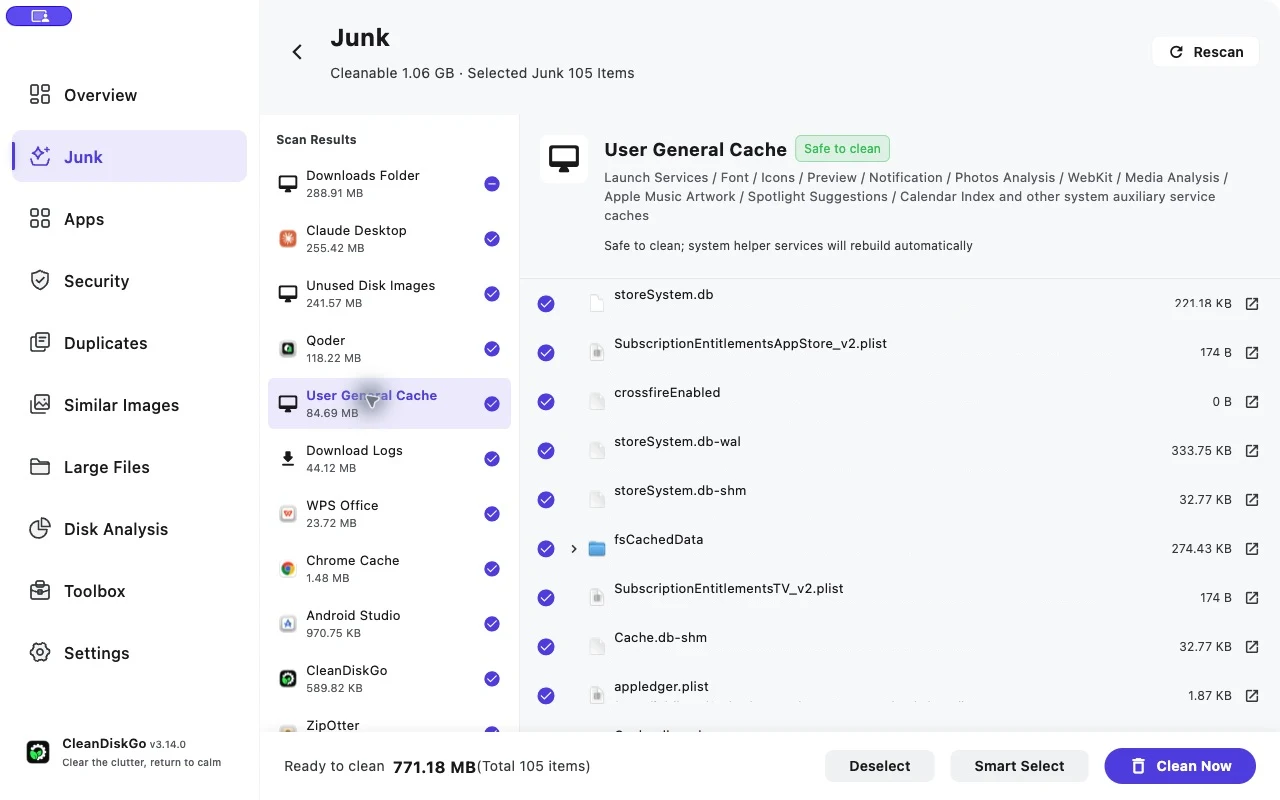
Open Junk in CleanDiskGo and inspect any log categories found. Check the description, paths and selected files before confirming. The screenshot below demonstrates the shared review interface using a cache category.
If a log comes back
Update or troubleshoot the app producing it. Repeated deletion does not solve repeated errors. For a full disk, also review large files and System Data.
References
Start Cleaning Your Mac
Download CleanDiskGo for free and give your Mac a fresh start